This comment report provides answers to the open-ended questions on the survey. In the comment report, you can get a comprehensive look at what customers are saying and the sentiment behind what they are saying.
Text Analytics Comment Report
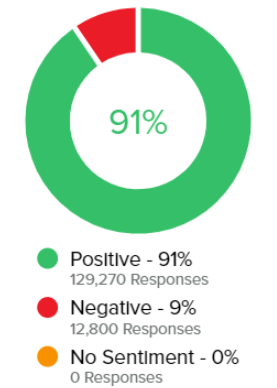
Overall Sentiment
- This shows the overall sentiment of the comments in the report and breaks it out by sentiment.
- Positive
- Negative
- No Sentiment
|
 |
Topics
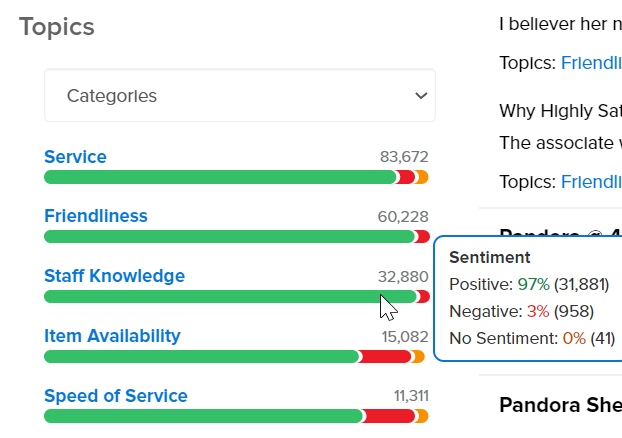
- This section breaks out the sentiment by the top 5 categories. You can hover over any of the categories, and it will give you the specifics of each category.
- By clicking on one of the categories, you can filter the report to show only comments that mention that category.
|
 |
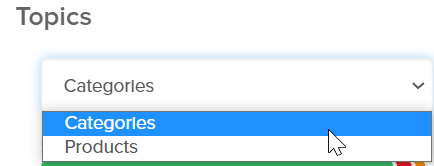
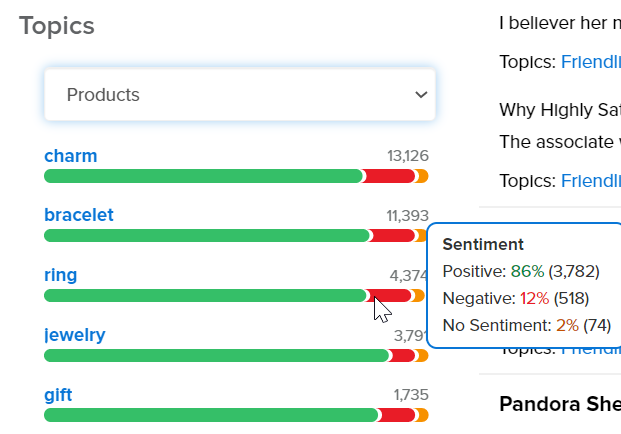
- You can switch to Products and see the top 5 products broken out by sentiment.
- Hover over any product to see the specific sentiment breakdown for that product.
- Click on one of the products to filter the report to show only comments that mention that product.
|
|
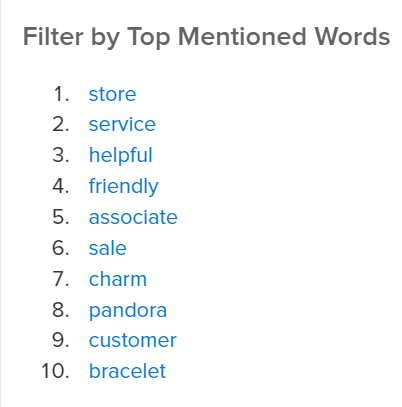
Top 10 Most Mentioned Words
- This shows the top 10 most mentioned words.
- Click on any word, and it will filter the report to show only comments with that keyword.
|
 |
All Report Filters
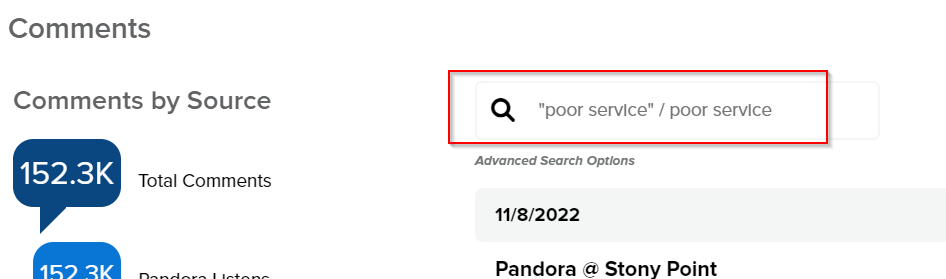
- At the top of the report, you can search for keyword(s) or phrase(s) in the search bar.
- To look for comments with a specific phrase, use quotes. For example, type “baked potato” with quotes to only return results where both words are mentioned together in that order.
|
 |
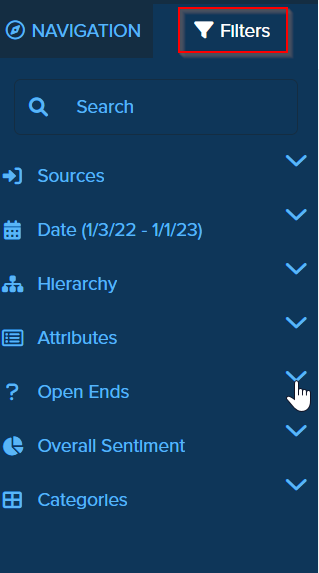
- On the left side, you can click on Filters and choose many filters to filter the report by
- If you have multiple sources, you can filter the source of the comments
- The date range you would like to see
- Hierarchy: Select a hierarchy level, down to the individual unit, to isolate data for specific areas of your organization
- Attributes: you can filter by the survey questions
- You can filter by the open-ends such as "Why Highly Satisfied?"
- You can filter by the Sentiment: Positive, Negative, Neutral
- You can filter by category and see how the comment sentiment and topics shift when data is refined to a particular category.
|
 |
Export the Report
- At the top right of the report, you can click Export
|
 |
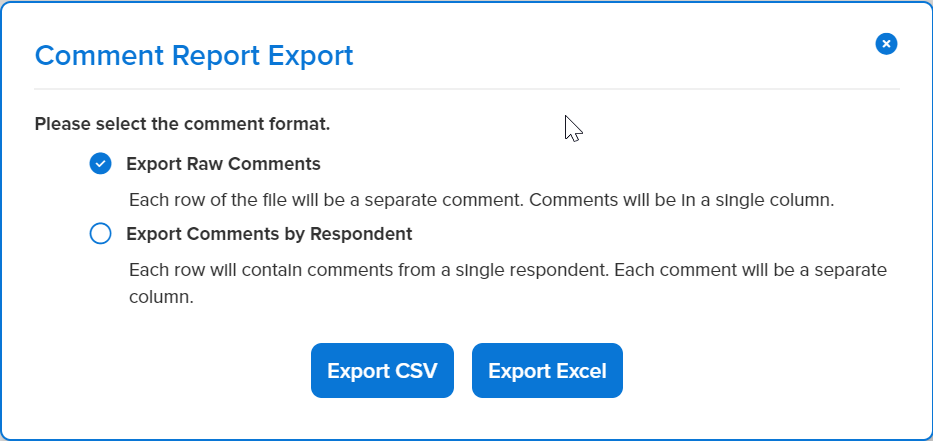
- Choose the report format
- Choose either CSV or Excel
- It will not run a report that has over 10 thousand records.
- If it has more than 10K records, filter to a smaller date range.
|
 |
You have many options in this report to drill down to exactly what you would like to see.

Comments
Please sign in to leave a comment.